Find your API key and project UUID
The Wopee.io MCP server, the CI integrations and the visual testing plugins all need two values from your project: WOPEE_PROJECT_UUID and WOPEE_API_KEY. Both are on the API Keys screen of the project in Commander.
Before you start
- A Wopee.io project. No account yet? Start at cmd.wopee.io, see Getting started.
- Project admin rights. Only project admins see API Keys. If it is missing from Settings, ask a project admin to generate the key for you.
Copy the project UUID
-
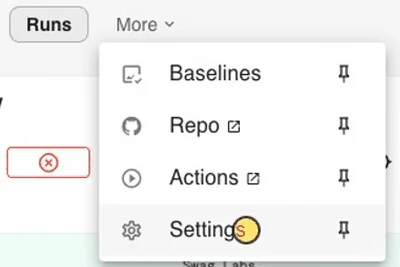
In Commander, open your project and go to More › Settings › API Keys.
-
Copy
WOPEE_PROJECT_UUIDwith its copy button. The UUID is not a secret.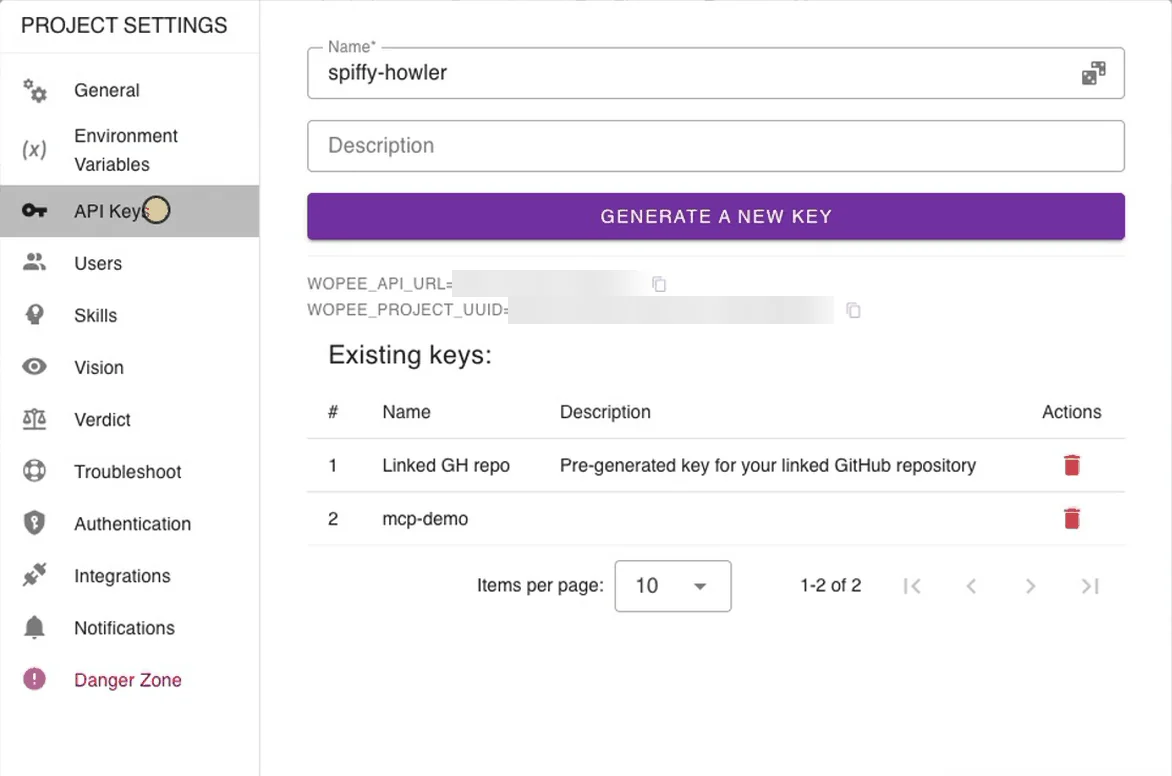
The same screen shows WOPEE_API_URL. You need it only for a dedicated or self-hosted Wopee.io instance; otherwise leave it out of your configuration.
Generate an API key
- On the same screen, enter a name that says where the key is used, for example
Claude Code on my laptoporGitHub Actions. -
Click Generate a new key and copy
WOPEE_API_KEY.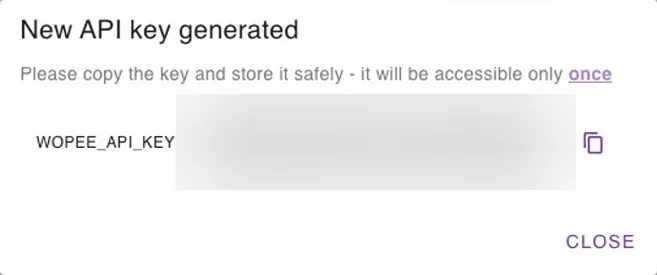
The key is shown only once. If you lose it, generate a new one.
Keep the key safe
- It acts as you. The key works for this one project, with the rights of the user who created it. Runs started with it count toward that user's plan.
- Keep it out of chats and committed files. Put it into your shell environment, a git-ignored
.envfile, your editor's secret prompt or your CI secrets. Coding agents should read it through a reference such as${WOPEE_API_KEY}. - One key per person and per place. Each teammate generates their own key, and CI gets its own. You can then delete one without breaking the others.
export WOPEE_API_KEY="your-api-key"
export WOPEE_PROJECT_UUID="your-project-uuid"
On Windows PowerShell use $env:WOPEE_API_KEY = "your-api-key".
Rotate a key
Rotate a key when it was pasted into a chat, committed, shared or when someone leaves the project:
- Generate a new key under More › Settings › API Keys.
- Replace the old value everywhere it is used: your environment,
.env, CI secrets. - Delete the old key under Existing keys.