🤖 Getting started
Your first AI test, from a URL to a verdict, in a few minutes. Prefer to watch first? Here is the 6-minute quick start:
1. Sign in to Wopee Commander
- Go to https://cmd.wopee.io.
- Sign in with your GitHub, GitLab or Google account.
You land on the Projects page. Every app you test lives here as one project.
2. Create a project and start the first Analysis
- Click NEW PROJECT.
- Paste the URL of your app, or pick a demo (E-shop demo, Website demo or Banking demo). The demos come with test instructions already filled in.
- Under Test instructions, describe in plain English what matters to you, including any test credentials. For example: Log in with the test account, add an item to the cart, complete the purchase, and verify the "Thank you" message. You can leave it empty and let the agent decide.
- Click Create project and generate tests.
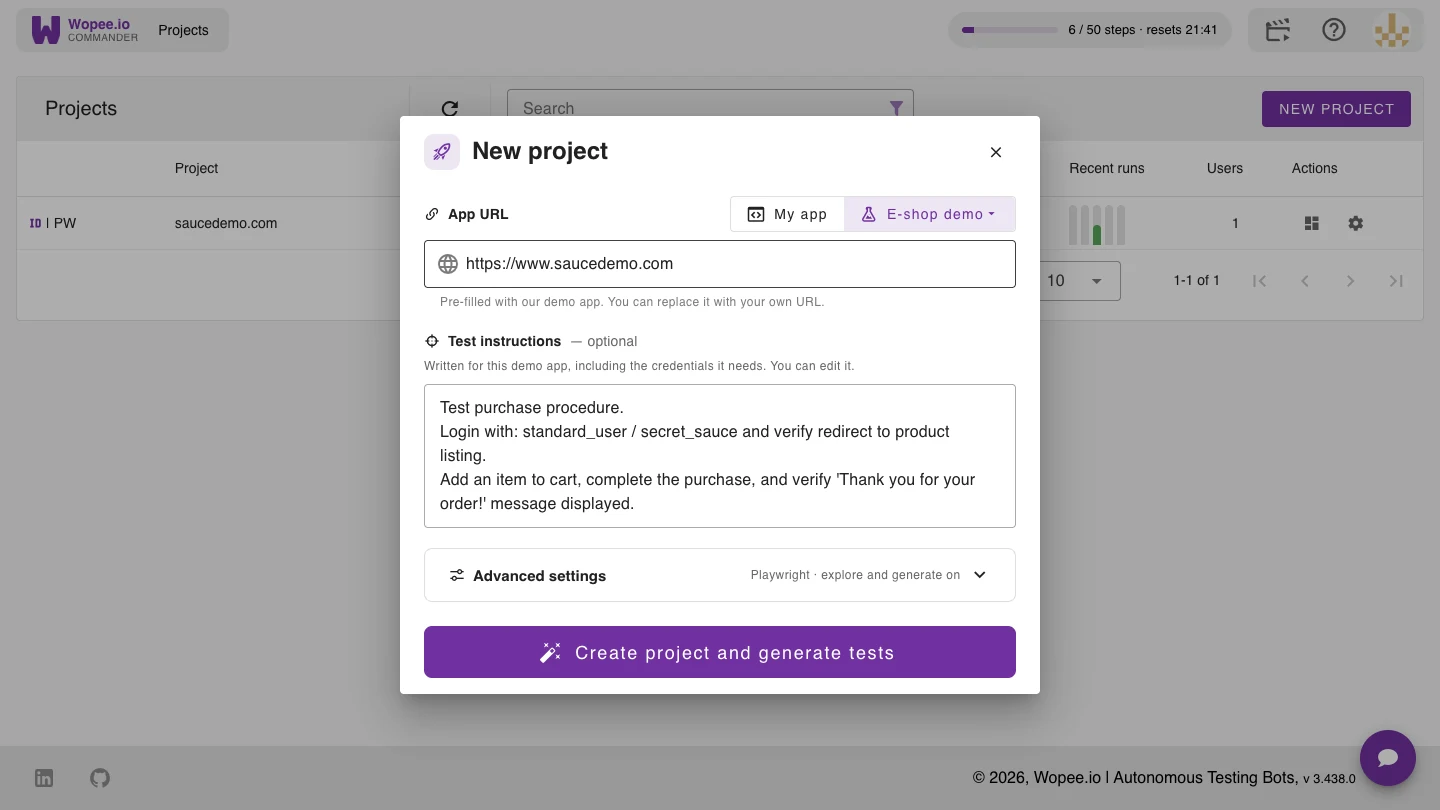
Advanced settings
The test framework (Playwright) is fixed once the project exists. Switch off Explore the app and generate tests to create an empty project and add your own tests first.
3. Accept the GitHub invitation
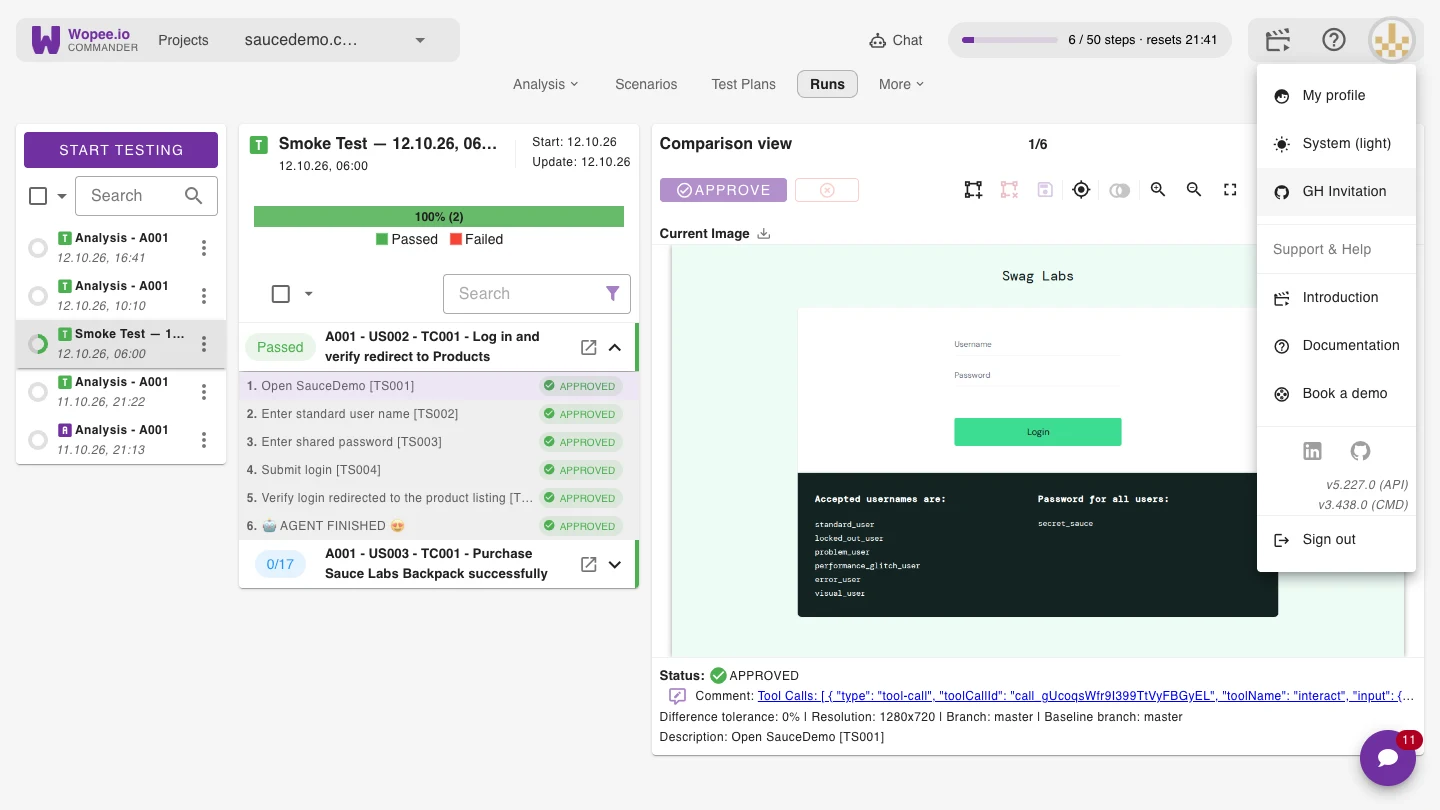
Every project gets its own GitHub repository. To open it, accept the invitation: open the menu under your avatar, click GH Invitation, and click Join on GitHub.
4. Watch the agent explore
The first Analysis starts right away. You see a live view of the agent's browser: it opens your app, logs in, clicks through the pages and checks what it sees. From what it saw, it writes:
- an application description,
- user flows, written as user stories,
- test scenarios for those flows, and runs every one of them, so you start with real results.
All of them are under Variables & Knowledge and in the scenario list. Edit any of them, or add instructions and regenerate.
5. Read the verdict
Click a scenario to open its run. The Report gives the verdict, every step with what was expected and what the agent verified, any issues it found, and a final analysis. When a test fails, read the report first: it tells you whether the app has a bug or the test needs a fix.
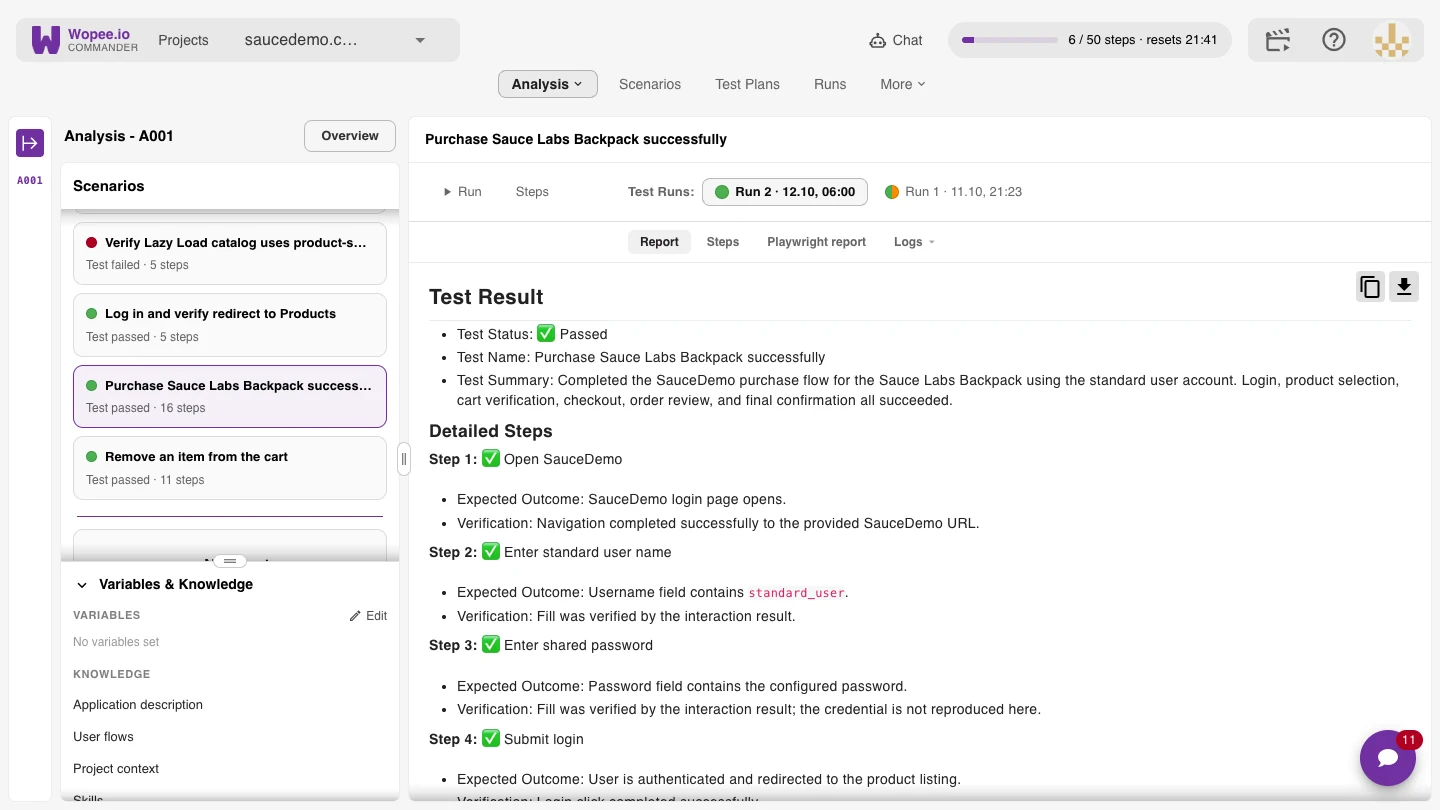
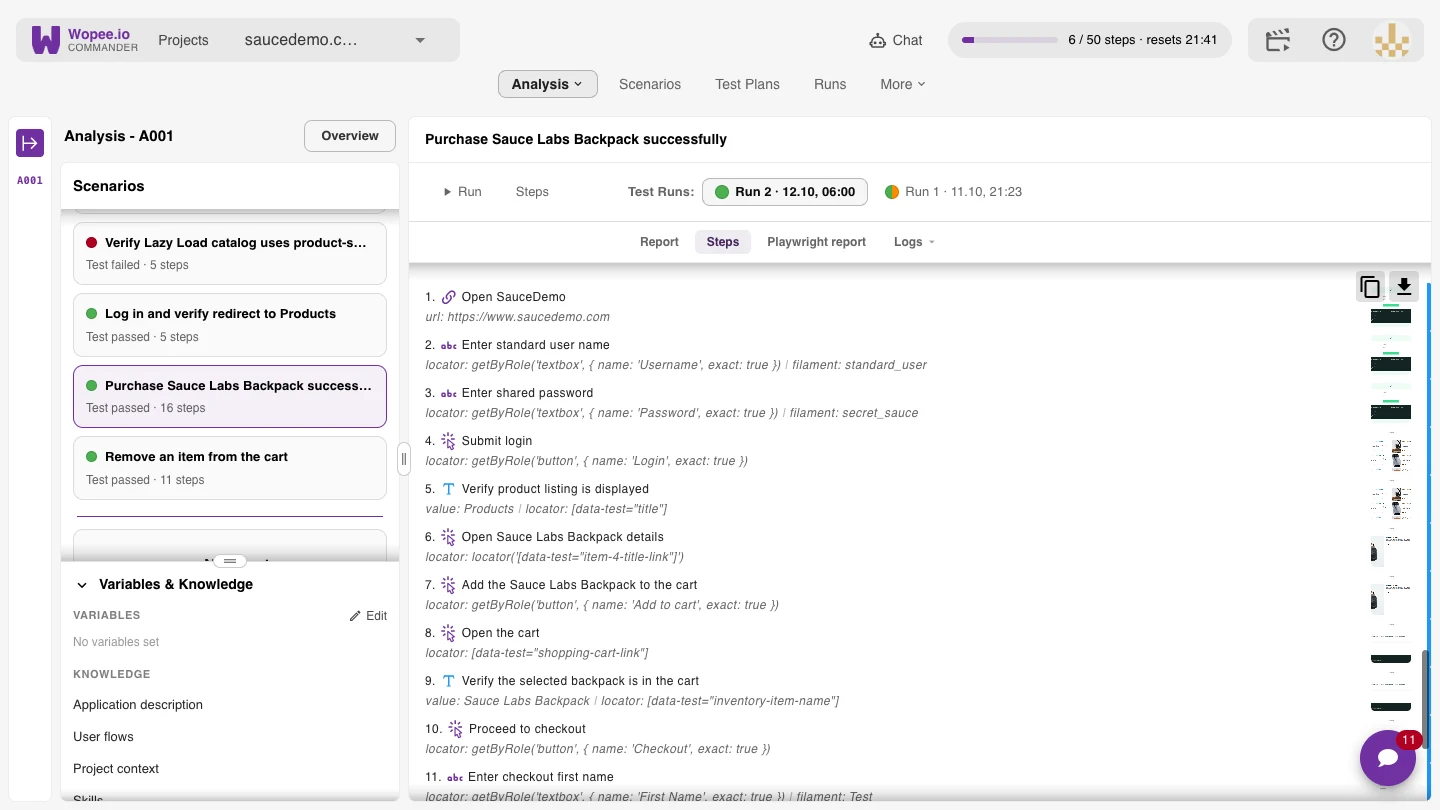
Under Steps, every step has its Playwright locator and a screenshot. When your page changes, the agent can pick a better locator, so the test heals itself. The Playwright report shows exactly what ran.
6. Your test library
Scenarios lists every test, grouped by Analysis and user story, with its category, number of steps and the agent's last verdict.
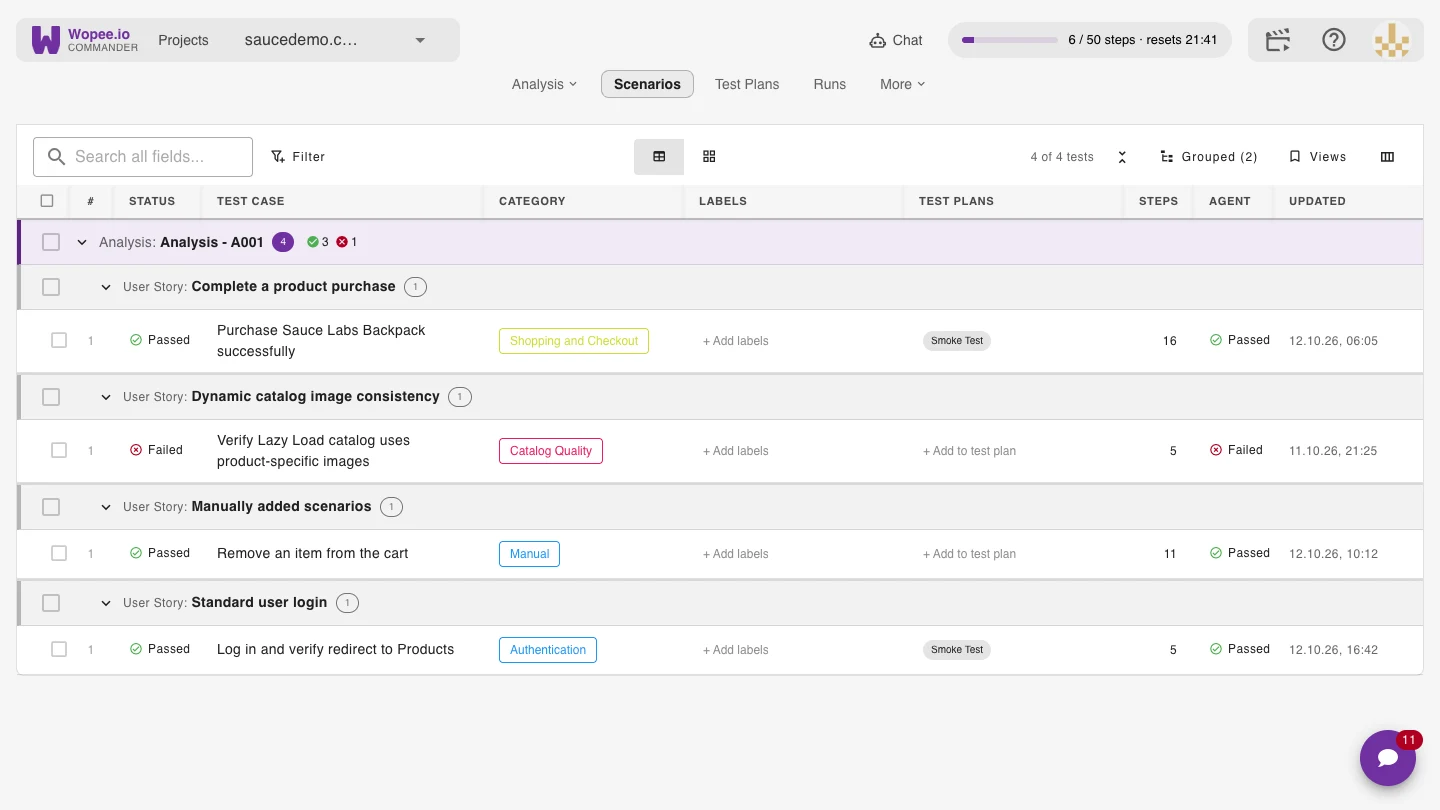
To write your own test, click + New test, give it a name and describe it in plain English. On its first run the agent works out the steps; keep Save steps from this run switched on, and later runs replay them.
7. Test Plans and schedules
Group tests into a Test Plan (for example Smoke Test), run it by hand with Run, or put it on a schedule: every hour, day, week, month, or a custom cron expression.
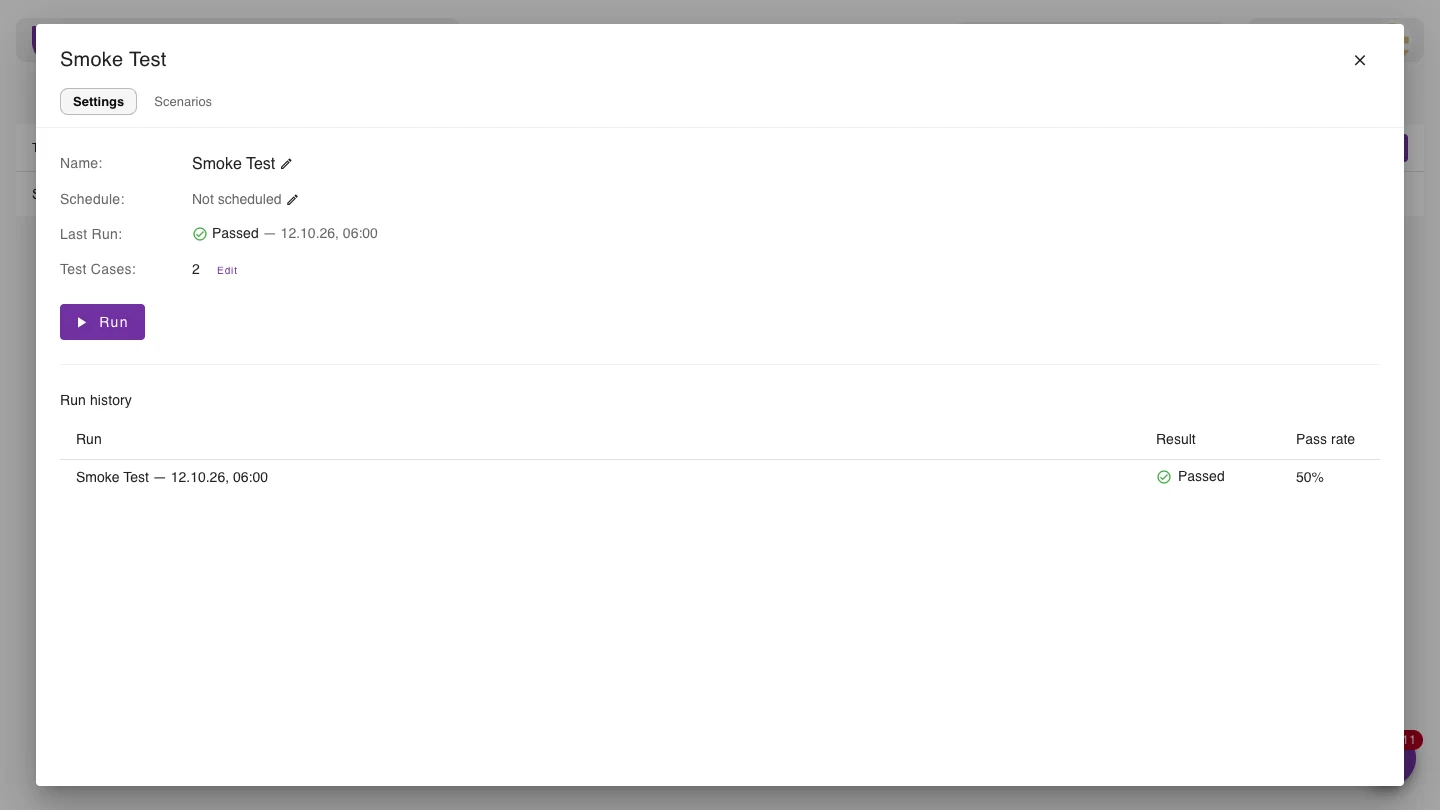
8. Runs and visual checks
Every execution lands in Runs. Each step's screenshot is compared with its approved baseline, so you also see visual changes, not only broken clicks.
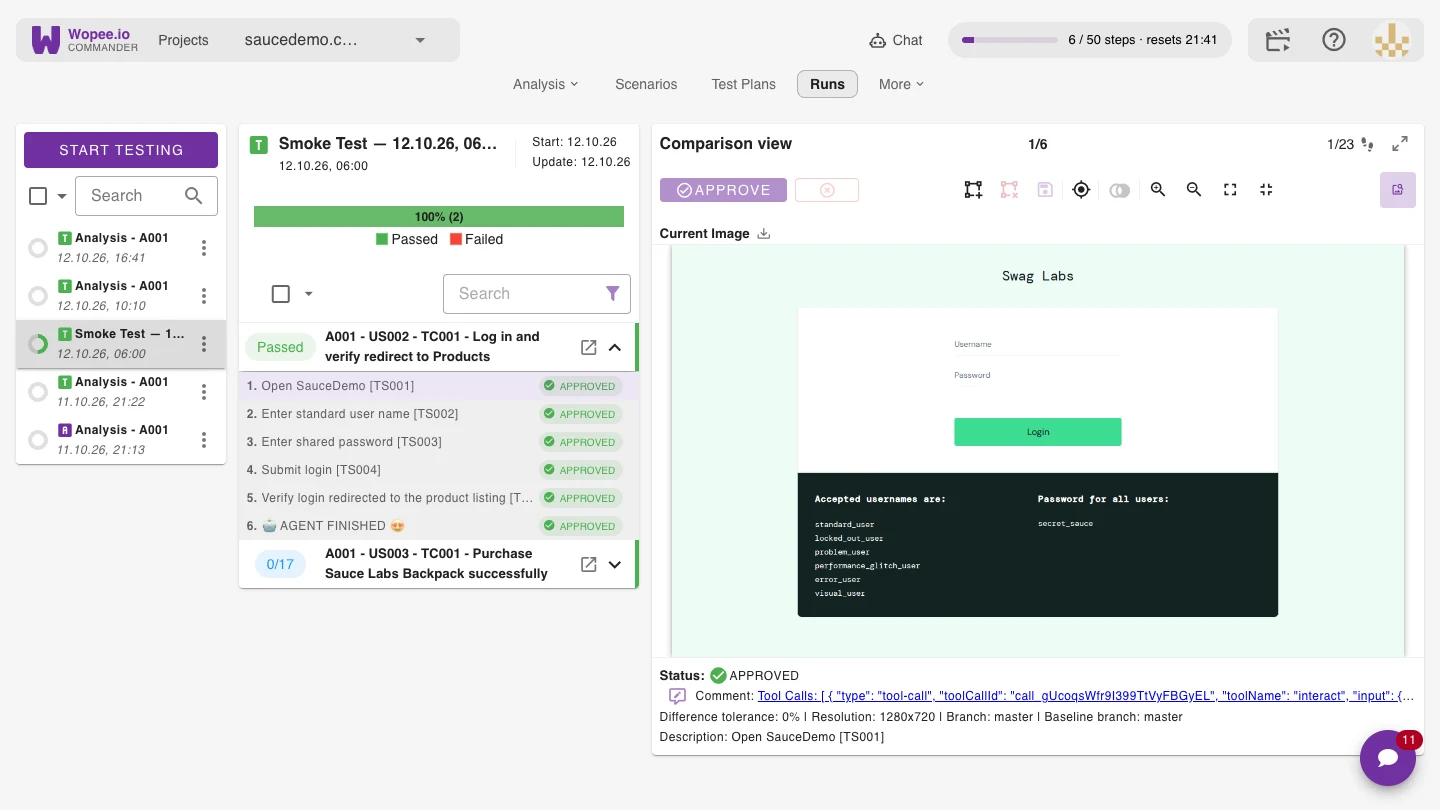
You can 👍 Approve or 👎 Reject the current state of the tested application if its Test Step Status is:
New- no previous state was approved (for this test step)Unresolved- previous state was already approved but current state is different (for this test step)
9. Your tests in your repository
Each Analysis has its own branch in the project's GitHub repository: the user flows are a Markdown file, and the scenarios, with every step and Playwright locator, are a JSON file. Every change is a commit. Open the repository from More › Repo, or the whole project in VS Code or Cursor.
Free plan and step limits
The free plan gives the agent 50 steps every 5 hours and 2 projects. Every paid plan starts with the first month on us: see Upgrade in the app.
More
- 🛠️ Tools & Assertions: how the agent interacts with your app
- 🩹 Self-Healing: how tests keep working when your UI changes
- Integrate your existing tests: Playwright, Cypress, Robot Framework, WebdriverIO
- Short videos: Wopee.io in 2 minutes, Visual checks, Your tests, your repo