🗄️ Browser local storage
Configure and upload browser local storage data to ensure your tests run with the necessary application state and user preferences.
Overview
Browser local storage is crucial for testing web applications that rely on client-side data persistence. Wopee.io allows you to upload and configure local storage data that will be available during test execution, ensuring tests run with realistic application states.
What is browser local storage?
Local storage is a web storage mechanism that allows web applications to store data locally within a user's browser. This data includes:
- User preferences: Theme settings, language choices, display options
- Authentication tokens: Session tokens, API keys, refresh tokens
- Application state: Shopping cart contents, form data, user progress
- Cache data: Frequently accessed information, user-specific configurations
How to obtain browser storage data
To capture browser storage data for your tests, you'll use Playwright's built-in test generator (codegen) tool. This tool allows you to record your browser interactions and automatically save the resulting storage state.
Step 1: Install Playwright (if not already installed)
Step 2: Generate storage state using Playwright codegen
Use the codegen command with the --save-storage flag to capture browser storage:
Examples:
# For a specific website
npx playwright codegen --save-storage=auth.json https://example.com

# For local development
npx playwright codegen --save-storage=auth.json http://localhost:3000

# Without URL (you can navigate manually)
npx playwright codegen --save-storage=auth.json
Step 3: Authenticate and interact with your application
When the browser window opens:
- Navigate to your application (if not already there)
- Perform authentication (login, etc.)
- Navigate through pages you want to test
- Interact with features that set storage data
- Stop recording by closing the browser window or pressing the stop button
Step 4: Verify the generated file
After closing the browser, verify that auth.json was created in your current directory. The file should contain your browser's storage state including cookies, localStorage, sessionStorage, and IndexedDB data.
Step 5: Provide the file to Wopee.io
Once you have your auth.json, hand it to Wopee.io in one of two ways:
- Upload it in Commander (recommended) — no repository work needed. See How to upload auth.json in Commander below.
- Commit it to your repository — move the file to your repository's
datadirectory:
Complete workflow example
Here's a complete example for capturing authentication state:
# 1. Start codegen with storage saving
npx playwright codegen --save-storage=auth.json https://myapp.com
# 2. In the browser window that opens:
# - Navigate to the login page
# - Enter your credentials
# - Complete the login process
# - Navigate to a few key pages
# - Close the browser
# 3. Move the file to your repository
mkdir -p data
mv auth.json data/
# 4. Verify the file structure
ls -la data/auth.json
Advanced codegen options
You can customize the codegen process with additional options:
# Emulate specific device
npx playwright codegen --device="iPhone 13" --save-storage=auth.json https://cmd.wopee.io

# Set specific viewport size
npx playwright codegen --viewport-size="1920,1080" --save-storage=auth.json https://cmd.wopee.io

# Emulate dark mode
npx playwright codegen --color-scheme=dark --save-storage=auth.json https://cmd.wopee.io

# Use existing browser profile (for persistent authentication)
npx playwright codegen --user-data-dir=/path/to/browser/profile --save-storage=auth.json https://cmd.wopee.io
Testing the captured storage state
Before using the file in your tests, verify it works correctly:
# Test the captured authentication state
npx playwright codegen --load-storage=auth.json https://myapp.com
If the storage state is correct, you should see your application in an authenticated state when the browser opens.
Troubleshooting storage capture
Common issues and solutions:
- No file generated: Ensure you close the browser window properly or stop recording
- Empty file: Make sure you actually perform actions that set storage data
- Missing data: Navigate through more pages and interact with features that use storage
- Authentication not captured: Complete the full login flow before stopping recording
File size considerations:
- Consider cleaning up unnecessary storage entries
- Focus on essential authentication and state data
How to upload auth.json in Commander
The easiest way to provide your auth.json is to upload it directly in Commander — no repository work needed. The agent then starts both crawling and test execution already logged in.
You can upload the file at three levels. The most specific level wins: a user story overrides its analysis, and an analysis overrides the project.
User story   (most specific)  ──▶  overrides analysis and project
Analysis                      ──▶  overrides project
Project      (broadest)       ──▶  applies everywhere by default
Uploading requires project-admin rights. If the Upload button is greyed out, ask your project admin.
Where each file is stored
Each upload is committed to your project repository: the project level to data/auth.json, the analysis level to data/auth.json on the analysis branch, and the user story level to data/US00x/auth.json on the analysis branch. You normally don't need to touch these files by hand.
Project level
Applies to every analysis and run in the project. Open Project Settings → Authentication and upload your auth.json.
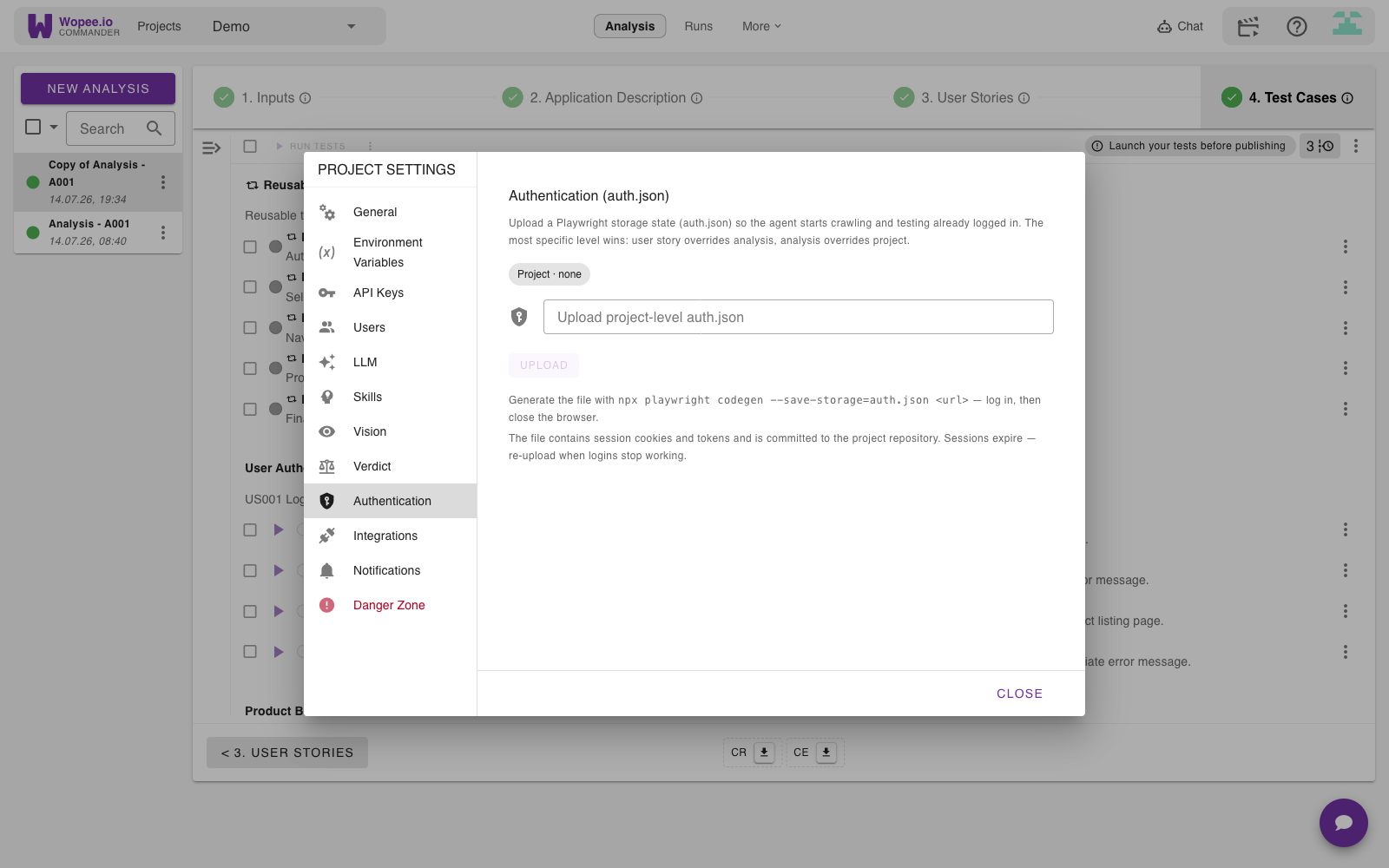
Analysis level
Applies to a single analysis, overriding the project-level file. Open the analysis 1. Inputs panel and expand the Authentication (auth.json) section.
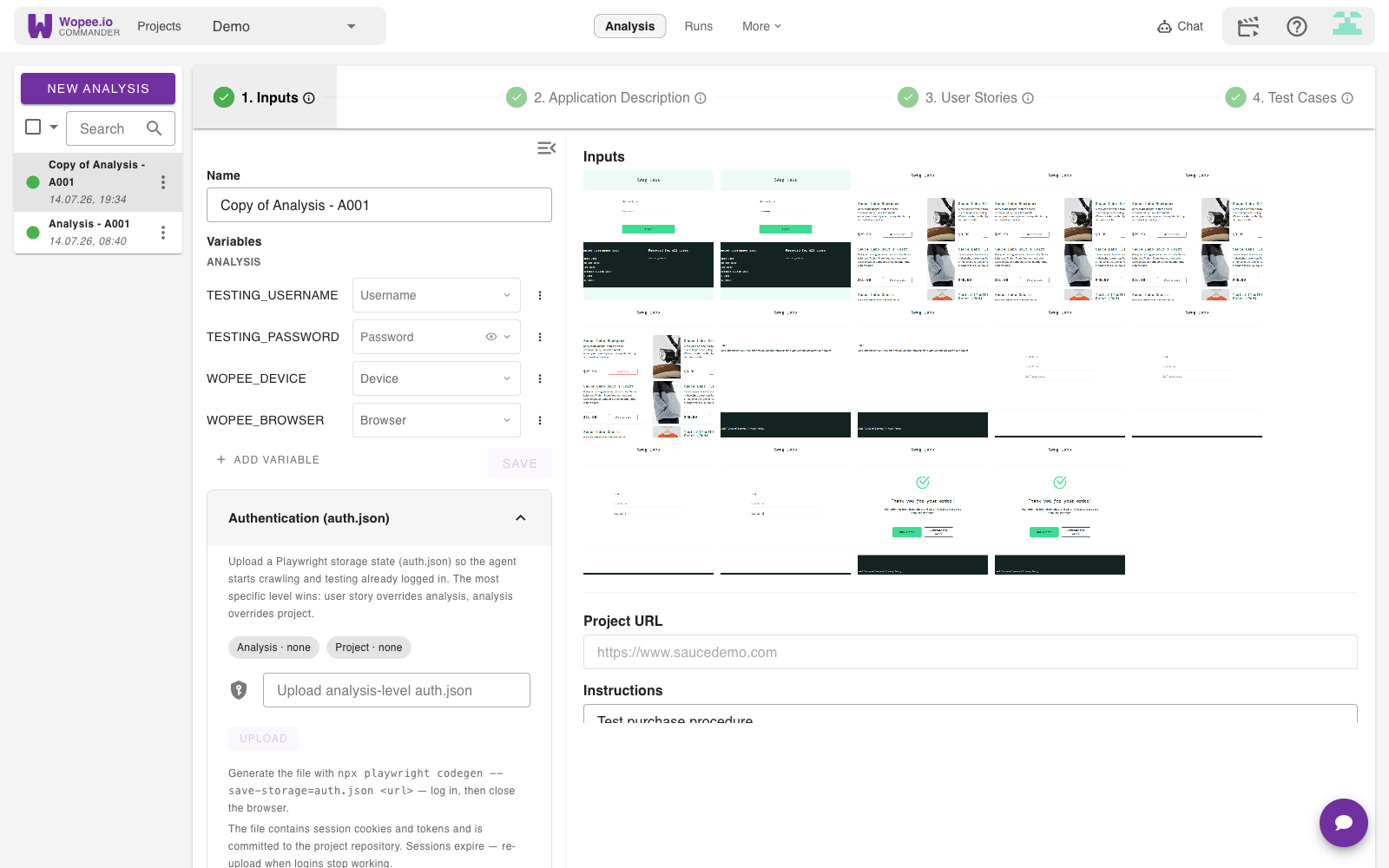
User story level
Applies to a single user story, overriding both the analysis and project files. Open the user story's edit dialog (the pencil icon in 4. Test Cases) and expand its Authentication (auth.json) section.
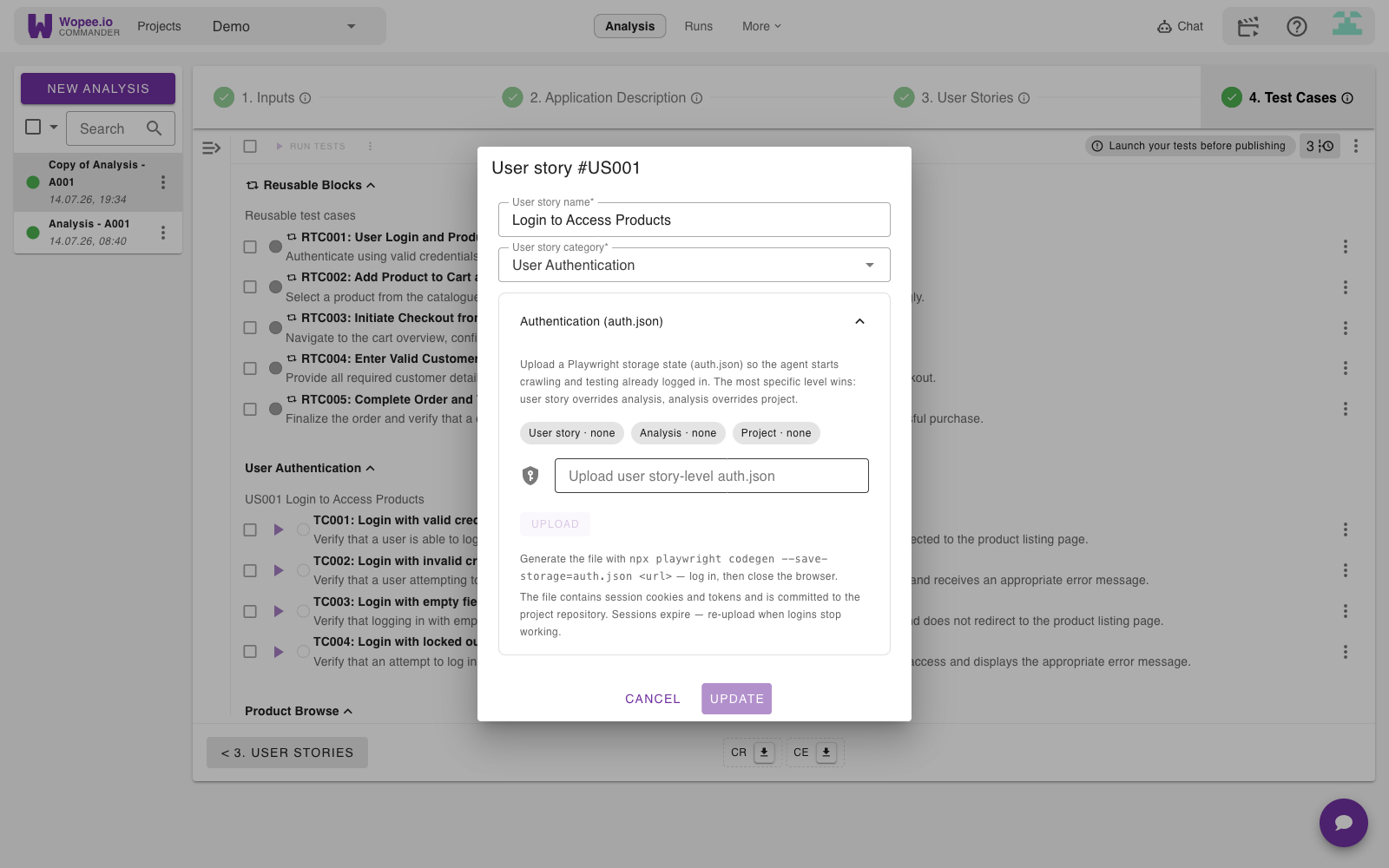
The status chips on each panel show which levels currently have a file and when each was uploaded, so you can see exactly which one the agent will use.
Sessions expire
auth.json contains live session cookies and tokens. When logins stop working, re-capture the file (repeat the steps above) and re-upload it — the new file replaces the old one.
Supported storage types
Wopee.io AI Agent automatically loads data from the data directory. It is based on Playwright's browser context and supports multiple browser storage mechanisms:
localStorage
Key-value pairs stored persistently in the browser.
sessionStorage
Temporary storage that lasts for the duration of the page session.
Cookies
Small pieces of data stored by the browser for specific domains.
IndexedDB
More complex database storage for larger amounts of structured data.
Alternative: commit the file to your repository
Instead of uploading in Commander, you can commit the browser context file to your repository's data directory by hand. The AI testing agent will automatically detect and apply this storage state.
The same cascade applies, based on where you place the file:
| Level | Path | Branch |
|---|---|---|
| Project | data/auth.json |
default branch |
| Analysis | data/auth.json |
analysis branch |
| User story | data/US00x/auth.json |
analysis branch |
Check it in Commander
Once the file is committed to the correct path and branch, it also shows up in the matching Authentication (auth.json) panel in Commander — the status chips there confirm the level is picked up. If it doesn't appear, double-check the path and branch against the table above.
Create a file named auth.json in your data directory (example):
{
  "cookies": [
    {
      "name": "session-username",
      "value": "standard_user",
      "domain": "www.saucedemo.com",
      "path": "/",
      "expires": 1752609084,
      "httpOnly": false,
      "secure": false,
      "sameSite": "Lax"
    }
  ],
  "origins": [
    {
      "origin": "https://www.saucedemo.com",
      "localStorage": [
        {
          "name": "backtrace-guid",
          "value": "b6ff9051-63fb-49f5-9ce9-7706db9c4960"
        },
        {
          "name": "backtrace-last-active",
          "value": "1752608467035"
        }
      ]
    }
  ]
}
File organization in your repository
Repository structure
Place your browser context files in the data directory of your repository:
Naming conventions
- Use file name:
auth.json - The agent automatically loads the the JSON file
Storage data formats
Origin-based localStorage format
The recommended format organizes storage by domain origin:
{
  "origins": [
    {
      "origin": "https://cmd.wopee.io",
      "localStorage": [
        {
          "name": "user_id",
          "value": "12345"
        },
        {
          "name": "settings",
          "value": "{\"theme\": \"dark\", \"notifications\": true}"
        }
      ]
    }
  ]
}
Cookies configuration
Cookies are specified in an array with detailed properties:
{
  "cookies": [
    {
      "name": "auth_session", // Cookie name
      "value": "encrypted_session_data", // Cookie value
      "domain": ".cmd.wopee.io", // Domain scope
      "path": "/", // Path scope
      "expires": 1752609084, // Unix timestamp
      "secure": true, // HTTPS only
      "httpOnly": false, // JavaScript accessible
      "sameSite": "Lax" // SameSite policy
    }
  ]
}
IndexedDB data
Complex structured data for IndexedDB:
{
  "databases": [
    {
      "name": "MyAppDB",
      "version": 1,
      "stores": [
        {
          "name": "users",
          "data": [
            {"id": 1, "name": "John Doe", "email": "john@example.com"},
            {"id": 2, "name": "Jane Smith", "email": "jane@example.com"}
          ]
        }
      ]
    }
  ]
}
Using storage data in tests
Automatic detection and application
When you commit a JSON context file to your repository's data directory:
- Automatic detection: The AI agent scans the
datadirectory for JSON files during test initialization - Context loading: When found, the agent logs "Browser storage state found and to be uploaded"
- Browser initialization: A new browser context is created with the pre-configured storage state
- State persistence: All cookies, localStorage, and sessionStorage remain available throughout the test session
- Cross-domain support: Storage data is applied per origin, supporting multi-domain applications
This seamless integration means tests automatically start with your configured authentication, user preferences, and application state.
Practical example: Setting up authentication
- Create the context file: Add
auth.jsonto yourdatadirectory:
{
  "cookies": [
    {
      "name": "session-username",
      "value": "standard_user",
      "domain": "www.saucedemo.com",
      "path": "/",
      "expires": 1752609084,
      "httpOnly": false,
      "secure": false,
      "sameSite": "Lax"
    }
  ],
  "origins": [
    {
      "origin": "https://www.saucedemo.com",
      "localStorage": [
        {
          "name": "user-session",
          "value": "authenticated"
        },
        {
          "name": "user-role",
          "value": "standard"
        }
      ]
    }
  ]
}
-
Run your tests: The AI agent will automatically detect this file and initialize the browser with this authentication state
-
Tests start authenticated: Your tests begin as if the user is already logged in, skipping login steps
Common use cases
Authentication testing
Pre-configure authentication tokens and user sessions:
{
  "localStorage": {
    "access_token": "eyJhbGciOiJIUzI1NiIsInR5cCI6IkpXVCJ9...",
    "refresh_token": "def456ghi789jkl012mno345pqr678stu901",
    "user_profile": "{\"id\": 123, \"role\": \"admin\", \"permissions\": [\"read\", \"write\"]}"
  },
  "cookies": [
    {
      "name": "session_id",
      "value": "secure_session_hash",
      "domain": ".myapp.com",
      "secure": true,
      "httpOnly": true
    }
  ]
}
E-commerce testing
Set up shopping cart and user preferences:
{
  "localStorage": {
    "shopping_cart": "{\"items\": [{\"product_id\": 456, \"quantity\": 2, \"price\": 29.99}], \"total\": 59.98}",
    "user_preferences": "{\"currency\": \"USD\", \"shipping_address\": \"123 Main St\"}",
    "recently_viewed": "[456, 789, 123, 654]",
    "wishlist": "[789, 321, 555]"
  }
}
Application state testing
Configure complex application states:
{
  "localStorage": {
    "app_state": "{\"current_page\": \"dashboard\", \"sidebar_collapsed\": false}",
    "user_settings": "{\"theme\": \"dark\", \"language\": \"en\", \"timezone\": \"UTC\"}",
    "feature_flags": "{\"beta_ui\": true, \"advanced_features\": false}",
    "cache_timestamp": "2024-01-15T10:30:00Z"
  },
  "sessionStorage": {
    "form_data": "{\"step\": 3, \"completed_steps\": [1, 2]}",
    "temp_calculations": "{\"total\": 1250.50, \"tax\": 125.05}"
  }
}
Best practices
Local storage best practices
- Data consistency: Ensure storage data matches your application's expected format
- Token validity: Use valid, non-expired authentication tokens
- Minimal data: Include only necessary data to avoid bloating
- Security: Avoid real user credentials in test storage data
- Versioning: Maintain different storage configurations for different test scenarios
Environment-specific configurations
Development environment
{
  "localStorage": {
    "api_endpoint": "https://dev-api.myapp.com",
    "debug_mode": "true",
    "log_level": "debug"
  }
}
Staging environment
{
  "localStorage": {
    "api_endpoint": "https://staging-api.myapp.com",
    "debug_mode": "false",
    "log_level": "info"
  }
}
Production-like testing
{
  "localStorage": {
    "api_endpoint": "https://api.myapp.com",
    "debug_mode": "false",
    "log_level": "error"
  }
}
Troubleshooting
Storage not applied
- Verify JSON format is valid
- Check that domain settings match your application
- Ensure storage keys match application expectations
Authentication issues
- Validate token format and expiration
- Check cookie domain and path settings
- Verify authentication flow compatibility
Data format errors
- Ensure nested JSON is properly escaped
- Validate data types match application requirements
- Check for special characters in values
Performance issues
- Reduce storage data size if tests are slow
- Avoid large IndexedDB datasets
- Clean up unnecessary storage entries
Security considerations
- Never use real user credentials in test storage data
- Avoid storing sensitive information in plain text
- Use test-specific tokens and session data
- Regularly rotate test authentication data
Need help?
For browser storage configuration issues, contact our support team at help@wopee.io or visit our community discussions.