Robot Framework
wopee_rf adds visual testing to your Robot Framework tests. Your test takes a screenshot at the steps you choose, Wopee.io compares it with the approved baseline, and you review the differences in Commander.
You can use it in two ways:
- Keywords: add
Start Suite,Start Scenario,Track FullpageandStop Scenarioto your tests. You decide where screenshots are taken and how steps are named. This page uses this way. - Listener: run your existing tests unchanged with
--listener wopee_rf.Listenerand track a screenshot after selected keywords. See Configuration and listener › Listener.
Both work with the Browser library and SeleniumLibrary. The Track keyword compares any image you pass in, for example from Appium or a PDF rendered to PNG (examples).
This page walks through a complete example on Sauce Demo: two screenshots, a first run that creates the baselines, and a second run that catches a visual bug. Verified with wopee_rf 2.6.3, Robot Framework 7.5 and robotframework-browser 20.6.
Prerequisites
- Python 3.11 or newer
- Robot Framework 7 or newer
- Node.js 18 or newer, for the Browser library
- A Wopee.io account in Commander
1. Create a project
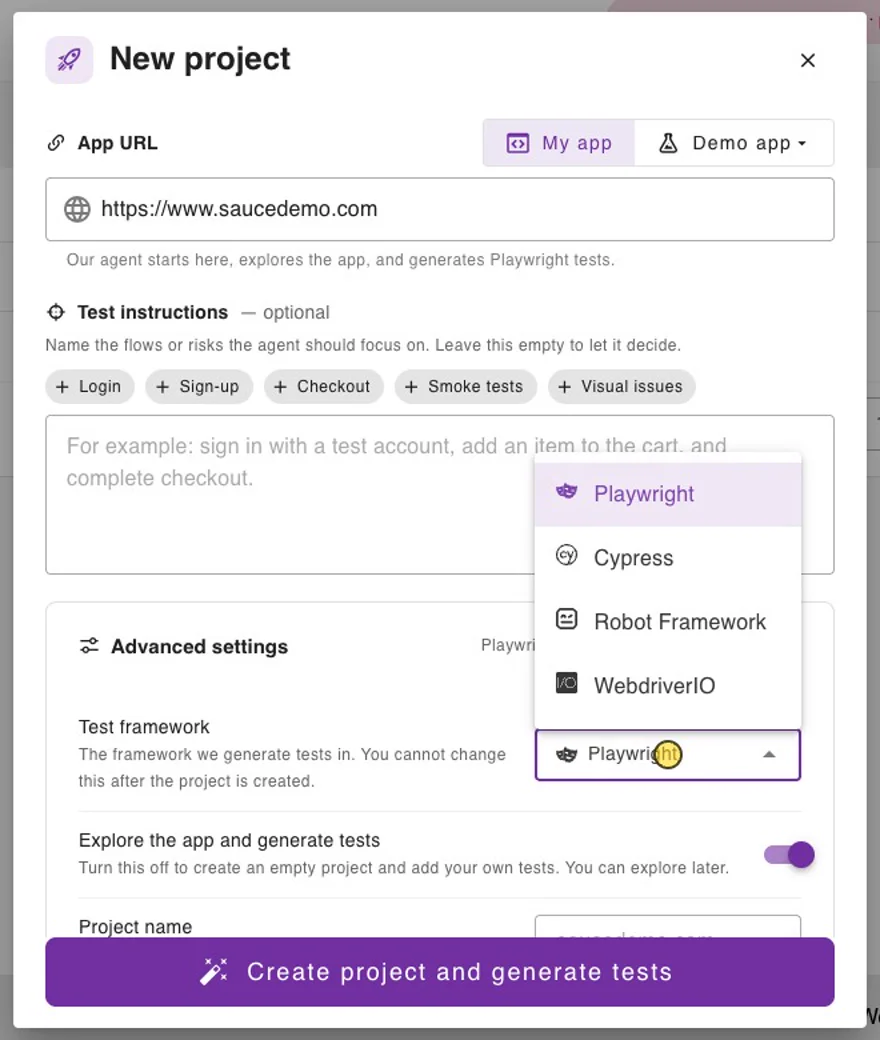
- In Commander, click NEW PROJECT and paste the App URL (for example
https://www.saucedemo.com). - Open Advanced settings and set Test framework to Robot Framework. Explore the app and generate tests switches off, because test generation is available for Playwright only.
- Click Create project.
2. Get the API key
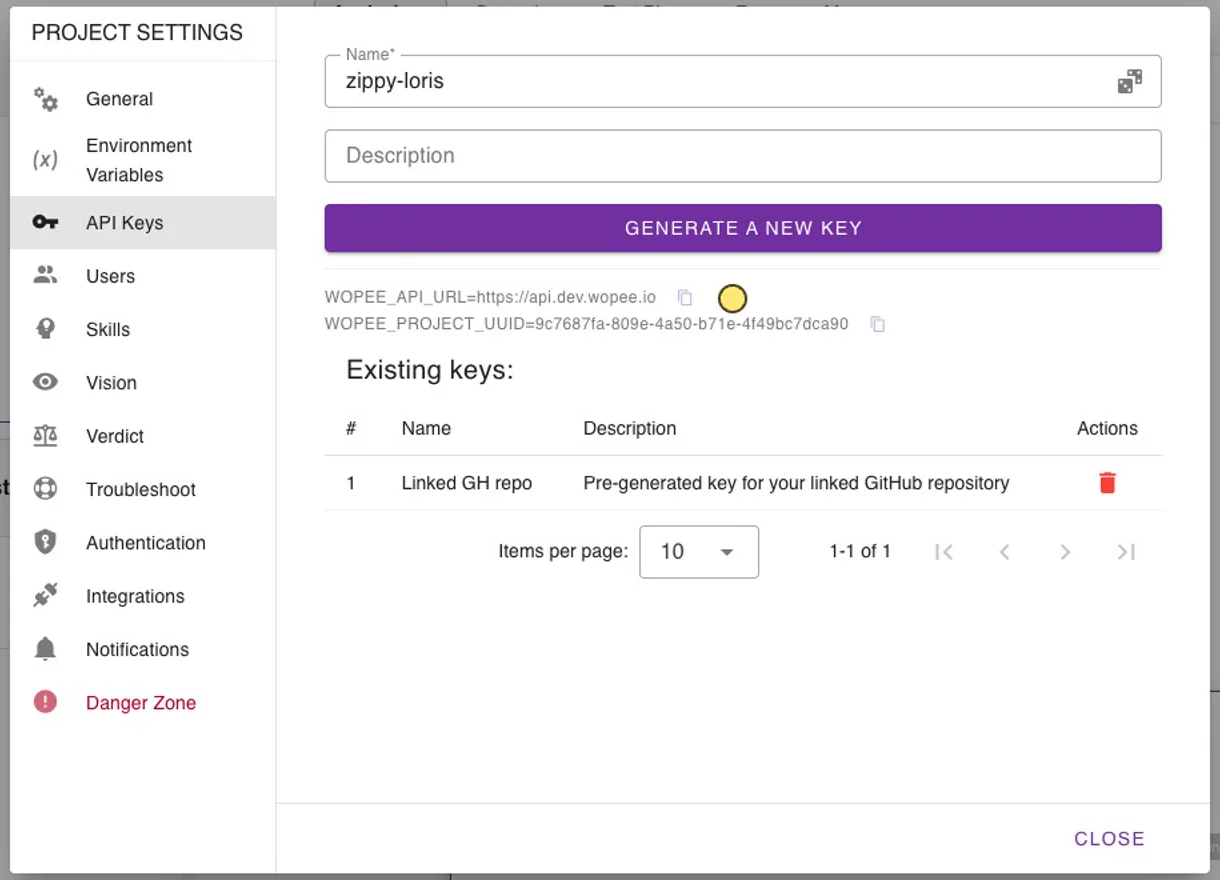
In the project, open More › Settings › API Keys. The page shows WOPEE_API_URL and WOPEE_PROJECT_UUID. Enter a name and click Generate a new key. The key is shown only once: copy it right away.
3. Install
python3 -m venv .venv
source .venv/bin/activate          # Windows: .venv\Scripts\activate

pip install wopee_rf robotframework robotframework-browser
rfbrowser init chromium
wopee_rf 2.6.3 needs one more install command
The PyPI package wopee_rf 2.6.3 does not declare its dependency wopee_sdk. Without it, Robot Framework reports Importing library 'wopee_rf.Standalone' failed: ModuleNotFoundError: No module named 'wopee_sdk'. Install the copy that ships inside the package:
pip install "$(python -c 'import sysconfig; print(sysconfig.get_paths()["purelib"])')/wopee_rf/dependencies/wopee_sdk-1.2.0.tar.gz"
On Windows PowerShell:
$sp = python -c "import sysconfig; print(sysconfig.get_paths()['purelib'])"
pip install "$sp\wopee_rf\dependencies\wopee_sdk-1.2.0.tar.gz"
Check with python -c "import wopee_rf". It prints nothing when the installation is complete.
4. Configure
Create a .env file next to your tests folder. Copy the first three values from API Keys:
WOPEE_API_URL=https://api.wopee.io
WOPEE_PROJECT_UUID=your-project-uuid
WOPEE_API_KEY=your-api-key
WOPEE_SCREENSHOT_VALIDATION_ENABLED=true
WOPEE_DRIVER_LIBRARY=BrowserLibrary
Both last lines are required
Without WOPEE_SCREENSHOT_VALIDATION_ENABLED=true the keywords do nothing and send nothing. Without WOPEE_DRIVER_LIBRARY the library cannot take screenshots and Track Fullpage returns None. In both cases the test still passes, so nothing tells you that no screenshot reached Wopee.io. Use SeleniumLibrary instead of BrowserLibrary for Selenium tests.
Keep .env out of version control. In CI, set the same variables as environment variables or secrets instead.
5. Write the test
tests/saucedemo.robot:
*** Settings ***
Library     Browser
Library     wopee_rf.Standalone    dot_env_path=.env

Test Setup       New Page    https://www.saucedemo.com
Test Teardown    Stop Scenario


*** Variables ***
${USER}     standard_user
${SUITE}    Robot Framework demo ${{datetime.datetime.now().strftime('%Y-%m-%d %H:%M')}}


*** Test Cases ***
Login And Products
    Start Suite       suite_name=${SUITE}
    Start Scenario    scenario_name=Robot Framework: login and products

    ${login}=    Track Fullpage    step_name=Login page

    Fill Text    id=user-name    ${USER}
    Fill Text    id=password     secret_sauce
    Click        id=login-button
    Wait For Elements State    css=.inventory_list    visible

    ${products}=    Track Fullpage    step_name=Products

    Log To Console    \nLogin page: ${login.status} | Products: ${products.status}
Start Suitestarts a run in Commander. A suite with the same name on the same branch is reused, so the timestamp gives every run its own entry.Start Scenariogroups the screenshots of one test.Track Fullpagetakes a full-page screenshot and returns the result withstatusandimage_url.Stop Scenarioin the teardown finishes the scenario even when the test fails.- All Wopee.io keywords take named arguments only: write
step_name=Login page, not justLogin page.
6. First run: create the baselines
Run robot from the folder that holds .env, because dot_env_path is relative to the working directory:
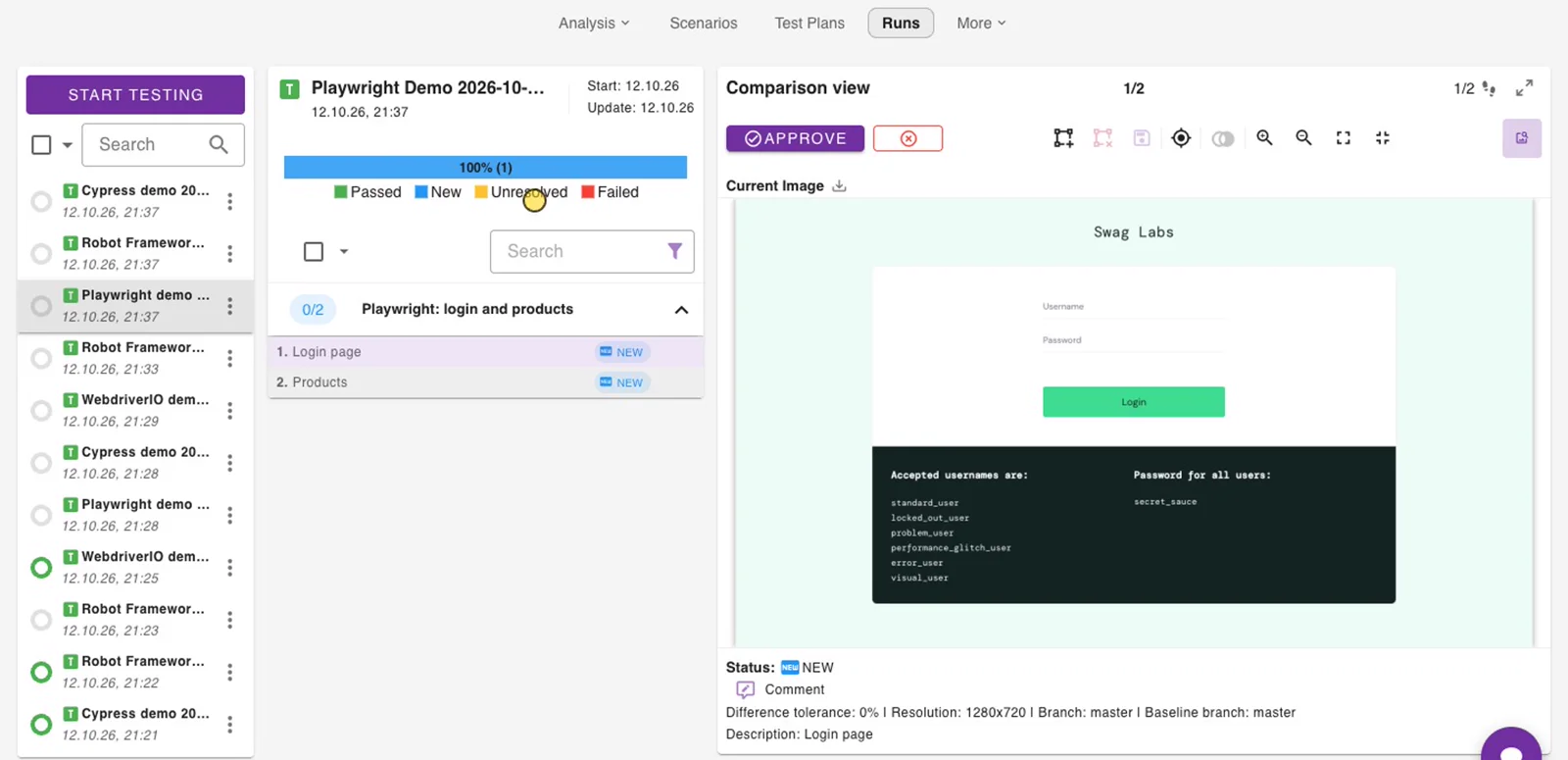
Both steps are new: there is no baseline yet. The Robot log (reports/log.html) shows the full result of each step, including image_url, the link to the step in Commander.
7. Approve in Runs
Open Runs in Commander and select the run Robot Framework demo ..., then each step, and click Approve. The screenshot becomes the baseline.
8. Second run: catch a visual bug
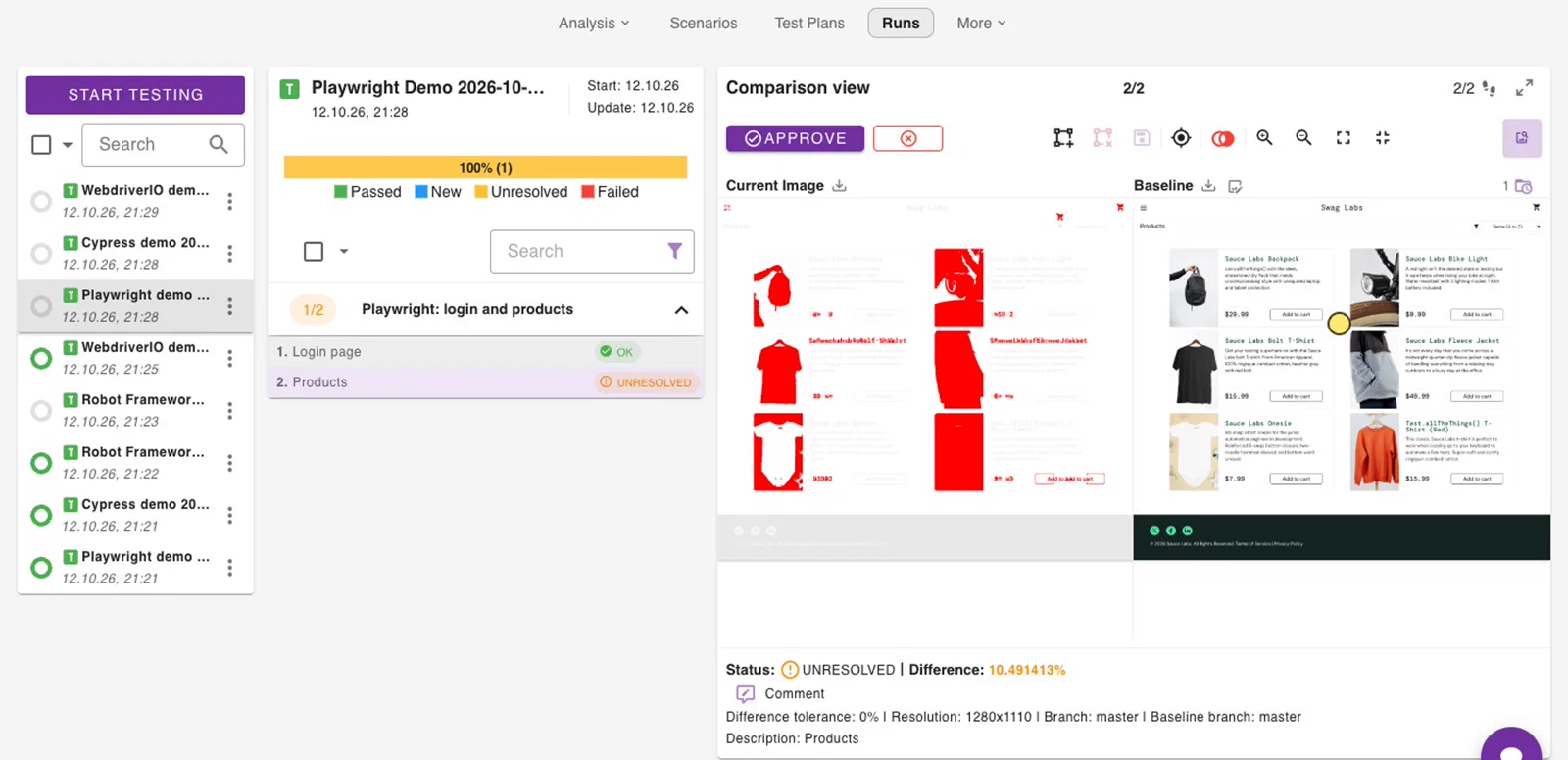
Sauce Demo has a visual_user whose products page is visually broken. Run the same test as that user:
Login page matches the baseline. Products is unresolved: open it in Runs, inspect the highlighted differences and Reject it as a bug, or Approve it if the change is intended.
Good to know
- A difference does not fail the test. The Robot test still passes and the step waits for review. To fail the test on a difference, add
WOPEE_ENABLE_SOFT_ASSERT=falseto.env(see Fail the test on a visual difference). - Baselines are identified by
<scenario name>-<step name>plus the branch and the environment labels. Keep both names stable between runs. - Branches:
WOPEE_BRANCH_NAMEsets the branch of the run (defaultmaster). See Branches and Baselines and branches. - Statuses:
new,ok,unresolved,autoApproved. See How it works. - Wait for the content you want to capture before each
Track Fullpage, as the test does withWait For Elements State. See Wait for fonts and images before tracking.
Troubleshooting
The most common problems are a missing wopee_sdk (step 3), a missing WOPEE_SCREENSHOT_VALIDATION_ENABLED=true or WOPEE_DRIVER_LIBRARY (step 4), and unnamed keyword arguments. The full list is in Configuration and listener › Troubleshooting.
Next steps
- Configuration and listener: all settings, the listener, SeleniumLibrary, branches and CI.
- Setup with Make: start from the template project.
- Examples: extra parameters, viewport screenshots, mobile apps and PDF documents.