Add the Wopee.io MCP server to GitHub Copilot
Connect GitHub Copilot to your Wopee.io project, so it can generate tests, run them with Wopee.io's testing agent and read the verdicts. This page covers Copilot in VS Code (agent mode), Copilot CLI and the Copilot cloud agent. For Copilot in Visual Studio see Visual Studio; for JetBrains IDEs see JetBrains. What the server does: Wopee.io MCP server.
Before you start: Node.js 20.18 or newer, and WOPEE_API_KEY and WOPEE_PROJECT_UUID from More › Settings › API Keys in your project (how).
Tested on 27 October 2026 with wopee-mcp 1.32.0, VS Code 1.143 and Copilot CLI 1.0.40, with the .vscode/mcp.json and Copilot CLI setups on this page. The install link, the inputs form and the cloud agent follow GitHub's and VS Code's documentation.
VS Code (agent mode)
Add to .vscode/mcp.json
Create .vscode/mcp.json in your workspace:
{
  "servers": {
    "wopee": {
      "type": "stdio",
      "command": "npx",
      "args": ["-y", "wopee-mcp"],
      "envFile": "${workspaceFolder}/.env"
    }
  }
}
Put the two values into .env in the workspace root and add .env to .gitignore:
The top-level key in .vscode/mcp.json is servers, not mcpServers. The file contains no secrets, so you can commit it; each teammate keeps their own .env.
Start the server
-
Open
.vscode/mcp.json. Above thewopeeentry, click Start. The CodeLens changes to Running | 15 tools | 3 prompts.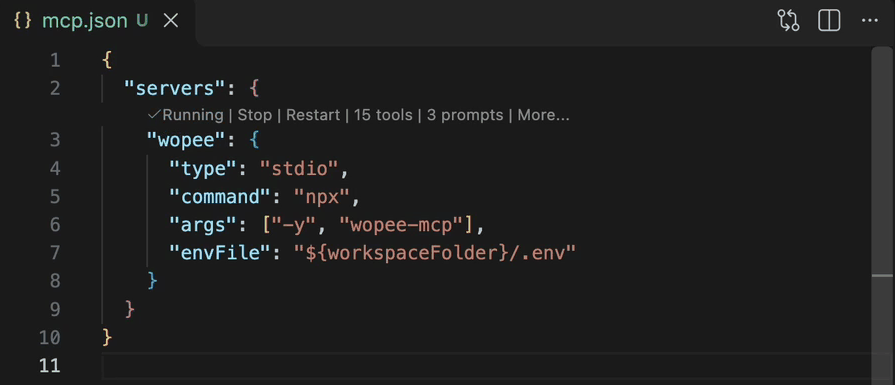
-
Open Copilot Chat in Agent mode. If the server shows Error and does not start before your first message, switch the chat session type to Local in the picker under the chat input, then click Start again.
Allow the tools
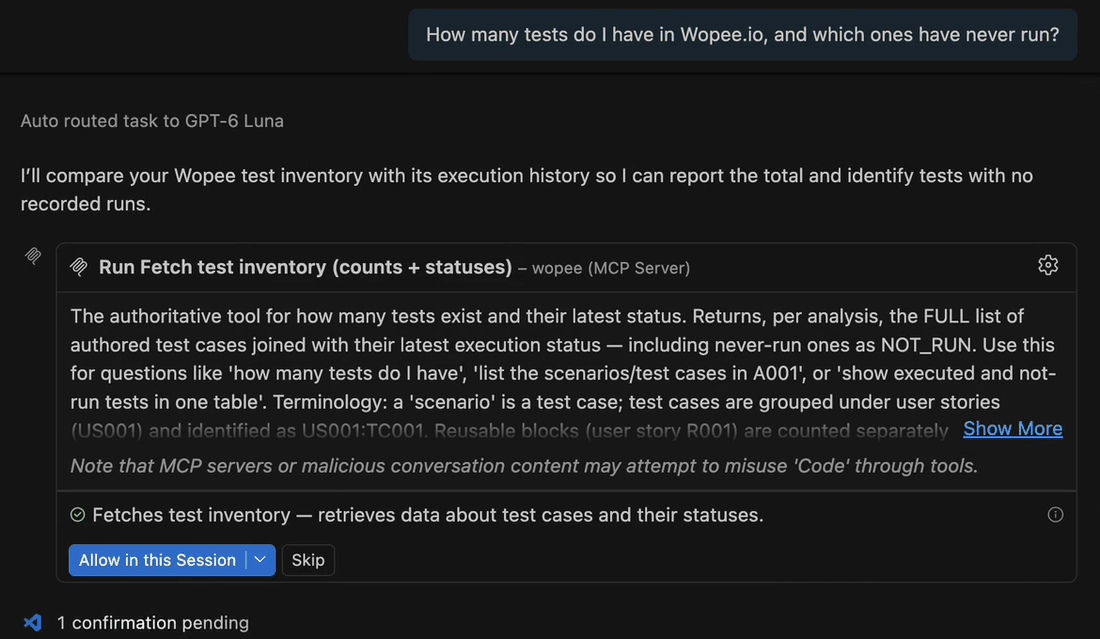
The first time Copilot calls a Wopee.io tool, it asks for approval. To stop the prompts for this chat, open the dropdown next to Allow in this Session and choose Allow Tools from wopee-mcp in this Session.
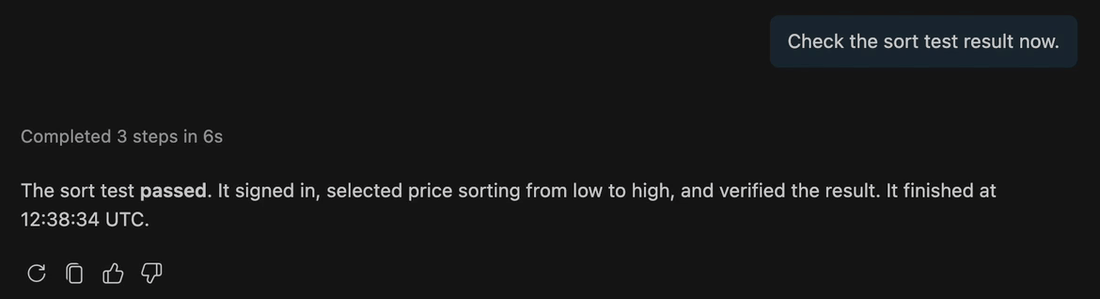
Test runs are asynchronous. Copilot may stop polling after about 45 seconds, before the verdict is in. Ask "Check the result now" to continue.
Other ways to add the server
The link adds the server to your VS Code user profile. It reads WOPEE_API_KEY and WOPEE_PROJECT_UUID from the environment VS Code was started with, so set them first and start VS Code from that terminal (code .). VS Code shows the configuration and asks you to confirm. The same from a terminal:
code --add-mcp '{"name":"wopee","type":"stdio","command":"npx","args":["-y","wopee-mcp"],"env":{"WOPEE_API_KEY":"${env:WOPEE_API_KEY}","WOPEE_PROJECT_UUID":"${env:WOPEE_PROJECT_UUID}"}}'
Without a .env file, VS Code can also ask for the key the first time the server starts and keep it in its secret storage:
{
  "inputs": [
    {
      "type": "promptString",
      "id": "wopee-api-key",
      "description": "Wopee.io API key",
      "password": true
    }
  ],
  "servers": {
    "wopee": {
      "type": "stdio",
      "command": "npx",
      "args": ["-y", "wopee-mcp"],
      "env": {
        "WOPEE_API_KEY": "${input:wopee-api-key}",
        "WOPEE_PROJECT_UUID": "your-project-uuid"
      }
    }
  }
}
VS Code does not pass servers that use ${input:...} on to Copilot agent sessions that run in a separate harness. If the server is missing there, use envFile or ${env:...}.
VS Code MCP config file location
| Scope | File | How to open |
|---|---|---|
| Workspace | .vscode/mcp.json |
MCP: Open Workspace Folder MCP Configuration |
| User profile | mcp.json in your VS Code user profile |
Command Palette, search for "MCP" |
Verify the Wopee.io MCP server is connected
- The CodeLens in
.vscode/mcp.jsonshows Running | 15 tools | 3 prompts. - Or run MCP: List Servers from the Command Palette and select
wopee. It shows the state; Show Output shows the server log.
Copilot CLI
Add with the Copilot CLI
copilot mcp add wopee --env 'WOPEE_API_KEY=${WOPEE_API_KEY}' --env 'WOPEE_PROJECT_UUID=${WOPEE_PROJECT_UUID}' -- npx -y wopee-mcp
Or run /mcp add in a session and fill in the form (Ctrl+S saves).
Copilot CLI MCP config file location
| Scope | File |
|---|---|
| User | ~/.copilot/mcp-config.json |
| Project | .mcp.json (from the current folder up to the repository root) or .github/mcp.json; loaded only in trusted folders |
Copilot CLI does not read .vscode/mcp.json. The user file looks like this:
{
  "mcpServers": {
    "wopee": {
      "type": "local",
      "command": "npx",
      "args": ["-y", "wopee-mcp"],
      "env": {
        "WOPEE_API_KEY": "${WOPEE_API_KEY}",
        "WOPEE_PROJECT_UUID": "${WOPEE_PROJECT_UUID}"
      },
      "tools": ["*"]
    }
  }
}
${VAR} is replaced from the environment Copilot CLI runs in, so the key stays out of the file.
Verify in Copilot CLI
Run /mcp or /mcp show wopee in a session, or copilot mcp list in the terminal. copilot mcp list also shows a workspace .mcp.json, for example the one Claude Code writes.
Non-interactive mode (copilot -p)
In -p mode, Copilot CLI loaded the tools from a workspace .mcp.json only when the file was passed explicitly. Add --allow-tool='wopee' to skip the approval prompts for the server's tools:
copilot -p "How many tests do I have in Wopee.io?" --additional-mcp-config @.mcp.json --allow-tool='wopee'
Copilot cloud agent
The Copilot cloud agent (the agent that works on issues and pull requests on github.com) can use the Wopee.io MCP server too.
- In the repository, open Settings › Copilot › MCP servers.
-
Paste the configuration and click Save MCP configuration:
-
Add
COPILOT_MCP_WOPEE_API_KEYandCOPILOT_MCP_WOPEE_PROJECT_UUIDas the repository's agent secrets (or variables, for the UUID). Only secrets whose names start withCOPILOT_MCP_are passed to MCP servers.
tools is required here; ["*"] allows all tools. To allow only reading, list the read tools, for example ["wopee_fetch_test_inventory", "wopee_fetch_recent_executions", "wopee_fetch_executed_test_cases"]. The cloud agent uses MCP tools only, so the server's prompts are not available, and it calls tools without asking you first. The cloud agent also has Playwright MCP enabled by default: name Wopee.io in the task so it uses the Wopee.io tools for testing.
First prompt to try
In Copilot Chat (agent mode) or Copilot CLI:
Copilot calls wopee_fetch_test_inventory and lists the analyses and test cases in your project with their latest status. More prompts: Prompt library.
Troubleshooting
| Problem | Fix |
|---|---|
| The server does not appear in VS Code | Check that the file uses servers (not mcpServers) and is valid JSON. Run MCP: List Servers and Show Output |
| VS Code shows Error next to the server and it does not start | Switch the chat session type from Copilot to Local (the picker under the chat input), then click Start |
[AUTH_ERROR] WOPEE_API_KEY or WOPEE_AUTH_TOKEN must be set |
With envFile, check that .env is in the workspace root and holds both values. With ${env:...}, VS Code was started without the variables; start it from a terminal (code .). With Copilot CLI, export the variables before copilot |
| Copilot reports the run as started but no verdict | Runs take minutes and Copilot may stop polling after about 45 seconds. Ask "Check the result now" |
Copilot CLI -p does not use the Wopee.io tools |
Pass the config explicitly: --additional-mcp-config @.mcp.json --allow-tool='wopee' |
| Copilot does not use the tools | Use Agent mode, check that the wopee tools are enabled in the tools picker, and name Wopee.io in the prompt |
Copilot CLI ignores .vscode/mcp.json |
Expected. Use ~/.copilot/mcp-config.json, .mcp.json or .github/mcp.json |
| Cloud agent: authentication errors | Check the secret names start with COPILOT_MCP_ and match the names in the configuration |
All error messages and their fixes: Troubleshooting.
FAQ
How do I add an MCP server to GitHub Copilot in VS Code?
Add it to .vscode/mcp.json under servers, use an install link, or run code --add-mcp. Then start the server from the CodeLens and use Copilot Chat in agent mode.
Where is the GitHub Copilot MCP config file?
In VS Code: .vscode/mcp.json in the workspace or mcp.json in your user profile. In Copilot CLI: ~/.copilot/mcp-config.json, or .mcp.json / .github/mcp.json in the repository. For the cloud agent: the repository's Settings › Copilot › MCP servers.
Can GitHub Copilot run end-to-end tests with MCP?
Yes. With the Wopee.io MCP server, Copilot starts Wopee.io's testing agent on your test cases, waits for the verdicts and reads the agent's report. The browsers run in the cloud.